
Silent Disco Setup Tutorials
Setting up a silent disco is quick and easy. This guide covers the headset controls, connecting your transmitter and selecting channels, with a short video walkthrough and troubleshooting tips. Pickup from Mount Eliza is standard, so you'll set this up at your event.
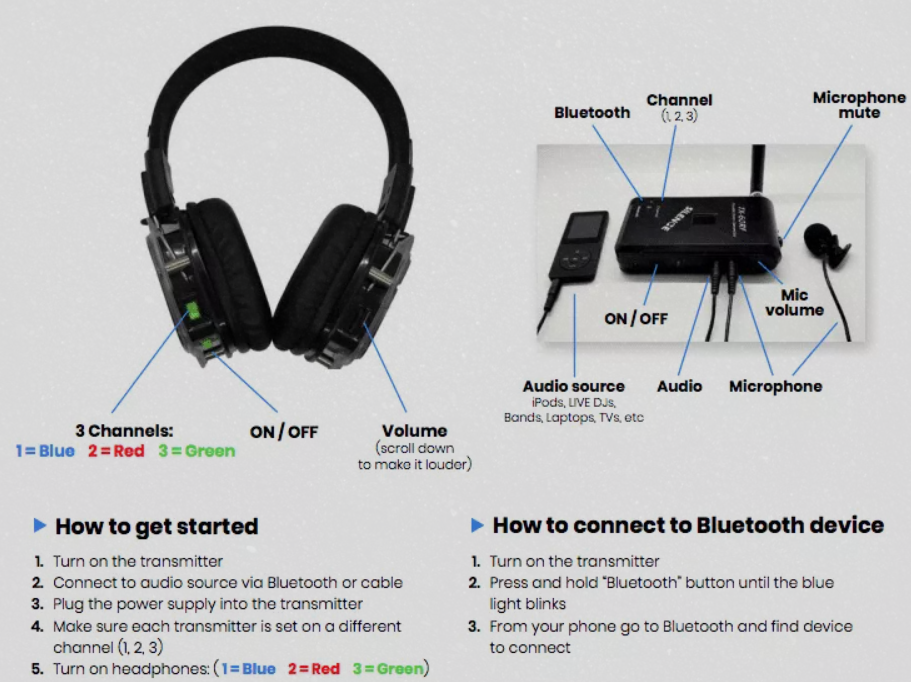
Quick setup overview
- Turn on the transmitter and connect your music source—a phone, laptop or DJ setup—using the audio cable or Bluetooth.
- If using Bluetooth, connect only one transmitter to each Bluetooth device at a time.
- Set the transmitter to your chosen channel.
- Turn on the headsets and select the matching channel.
- Start playing your music, turn up the volume on both the music device and headset, then test a headset to confirm the sound and channel.
- Using multiple channels? Set each transmitter to a different channel and connect it to its own music source.
- At the end of the night, switch everything off and return the equipment charged where possible.
How to use your silent disco
Headset controls
Power each headset on with the ON/OFF switch. Use the channel button to select channel 1, 2 or 3 — the LED colour shows which channel you're on. Adjust the volume with the scroll control on the ear cup. Some headsets also have a microphone with a mute option.
Connecting the transmitter
Turn the transmitter on. Plug your music source — a phone, laptop or DJ setup — into the transmitter's audio input, or connect via Bluetooth. Anything that plays audio will work. One transmitter is required with any headset hire.
Selecting channels
Each transmitter broadcasts one channel. Set your headsets to the matching channel to hear it. Add more transmitters — up to three — to run up to three channels, so guests can switch between different playlists or DJs. Set each transmitter to its own channel.
Troubleshooting
No sound in the headsets?
Make sure the headset is switched on, the volume is turned up, and it’s set to the same channel as the transmitter. Check that your phone, laptop or DJ setup is connected to the transmitter, playing audio, and has its volume turned up.
How do I know which channel I’m on?
The headset’s LED colour shows which channel you’re listening to. Each transmitter has a coloured numbered sticker—match the headset’s LED to the corresponding transmitter:
- Channel 1 — Blue
- Channel 2 — Red
- Channel 3 — Green
How many channels can I run?
Up to three — one transmitter per channel. One transmitter is required with any headset hire.
How do I connect my own music?
Plug a phone, laptop or DJ setup into the transmitter's audio input, or connect via Bluetooth.